
Mapping use cases
This page covers common and advanced mapping scenarios : type conversions, complex conditions, and multi-field logic.
Map a TEXT field to a NUMBER field
When numbers are stored as text, formats can vary (decimal separators, thousands separators, units, placeholders), making conversion ambiguous and error-prone. To be filterable and sortable, numbers must be stored as numbers, if they are stored as text, sorting and range filters will not behave reliably.
Examples of ambiguous formats:
1,000.90(US) is equivalent to1 000,90(many European formats).1,000(US) is not equivalent to1,000(Europe, where,can be a decimal separator).- Some legacy systems use placeholders like
NAor-to mean "no value".
Mixing number formats across data sources increases the risk of conversion errors and inconsistent data.
WARNING
Parsing text into numbers is inherently ambiguous and error-prone. Keep inputs as consistent as possible (same locale/format) and add validation checks.
Use a template (Twig) to normalize the text value before writing to a NUMBER field.
A basic example to handle spaces:
Replace
PRICE_TEXTwith your source field key.
twig
{% set v = targetItem.fields.PRICE_TEXT.value.data | default('') | trim %}
{% set v = v | replace({' ':''}) %}
{{ v }}A more complete example that handles thousands separators, decimal separators, and common placeholders (NA, N/A, -):
Replace
PRICE_TEXTwith your source field key.
twig
{# Read and normalize common number-as-text formats #}
{% set raw = targetItem.fields.PRICE_TEXT.value.data | default('') | trim %}
{% set v = raw | lower %}

{# Common "no value" placeholders #}
{% if v in ['', 'na', 'n/a', '-', '-'] %}
  {{ '' }}
{% else %}
  {# Remove spaces (including non-breaking), apostrophes, and some currency symbols #}
  {% set v = v | replace({' ':'', ' ':'', "'":'', '€':'', '$':'', '£':''}) %}

  {% set hasComma = (v | split(',') | length) > 1 %}
  {% set hasDot = (v | split('.') | length) > 1 %}

  {% if hasComma and hasDot %}
    {% set afterComma = v | split(',') | last %}
    {% set afterDot = v | split('.') | last %}

    {# Heuristic: 1-2 digits -> decimal separator #}
    {% if afterDot|length in [1,2] %}
      {% set v = v | replace({',':''}) %}
    {% elseif afterComma|length in [1,2] %}
      {% set v = (v | replace({'.':''})) | replace({',':'.'}) %}
    {% else %}
      {% set v = (v | replace({',':''})) | replace({'.':''}) %}
    {% endif %}

  {% elseif hasComma %}
    {% set parts = v | split(',') %}
    {% if parts|length == 2 and (parts[1]|length in [1,2]) %}
      {% set v = v | replace({',':'.'}) %}
    {% else %}
      {% set v = v | replace({',':''}) %}
    {% endif %}

  {% elseif hasDot %}
    {% set parts = v | split('.') %}
    {% if parts|length != 2 or (parts[1]|length not in [1,2]) %}
      {# Most likely a thousands separator #}
      {% set v = v | replace({'.':''}) %}
    {% endif %}
  {% endif %}

  {{ v }}
{% endif %}Map a TEXT or NUMBER field to a SINGLE-SELECT or CLASSIFICATION field
Text or Number values cannot always be predicted or normalized in a reliable way.
For example, the color "green" might appear as:
GreengreenGREEN104(a color code)
Since these values cannot be normalized automatically, the approach depends on the number of predictable input values.
Few predictable values - one rule per input
Create one rule per input value using conditions : each rule handles one specific case explicitly.
- In Action, select Use a default value and choose the target option or category to apply.
- In Only if, set the conditions describing when this value must be used (for example when source text equals
"Green"). - Before saving, click on Add new rule.
- Give a meaningful rule name, for example:
Green for "Green". - Click on Save and add a new rule and repeat the process for each predictable input value.
You will end up with multiple rules, each one handling a specific input value.
Many predictable values - use a template
For a larger number of values, a template is more efficient:
twig
{% if targetItem.fields["SOURCE"].value.data|default('')|trim|upper == 'GREEN' %}
  GREEN
{% elseif targetItem.fields["SOURCE"].value.data|default('')|trim == '104' %}
  GREEN
{% endif %}Replace SOURCE with your source field key and add as many conditions as needed.
Map a CLASSIFICATION field depending on multiple source fields
Sometimes a classification depends on the combination of several source fields rather than a single one.
In this example:
- The retailer target table contains:
EAN- the product EAN 13Classification- the website classification, with possible values:Vacuum cleaner wirelessVacuum cleaner with wire
- The supplier source table contains:
EAN 13- the product EAN 13Typology- product typology, with values:Vacuum cleanerCoffee machine
Type- specific toVacuum cleaner, with values:WirelessWith wire
The business rule is:
- If Typology is
Vacuum cleanerand Type isWirelessThen Classification =Vacuum cleaner wireless - If Typology is
Vacuum cleanerand Type isWith wireThen Classification =Vacuum cleaner with wire
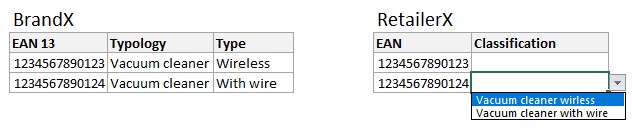
Create one rule per case on the same target field.
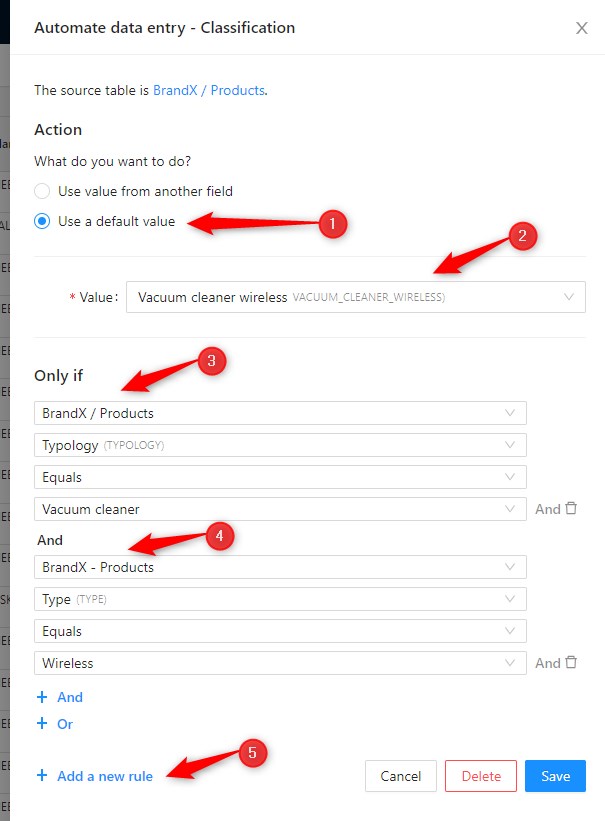
First rule : Vacuum cleaner wireless:
- In Action, select Use a default value and choose
Vacuum cleaner wireless. - In Only if, add:
- A condition on
TypologyequalsVacuum cleaner - A condition on
TypeequalsWireless
- A condition on
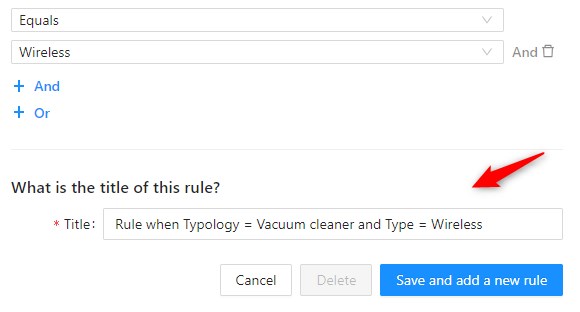
- Click + Add new rule and name it
Classification - vacuum cleaner wireless.
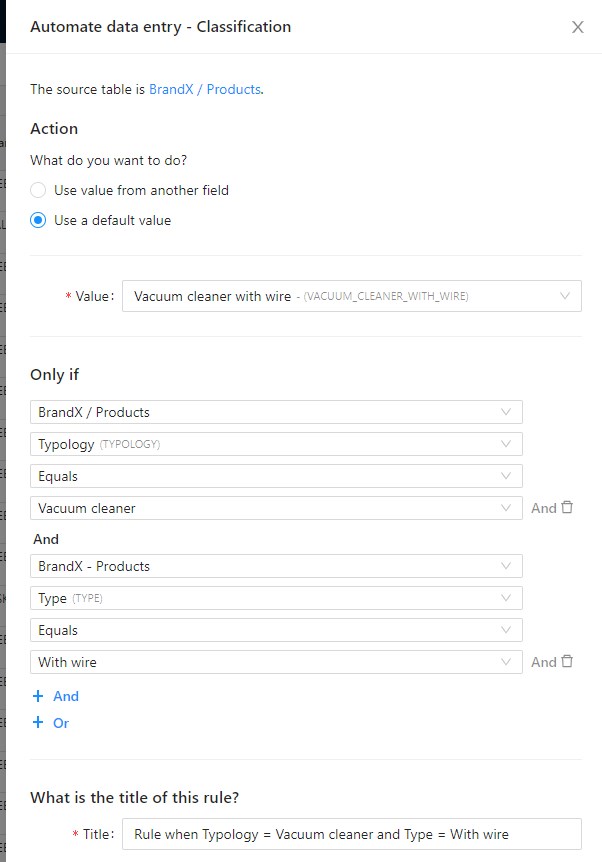
Second rule : Vacuum cleaner with wire:
- In Action, select Use a default value and choose
Vacuum cleaner with wire. - In Only if, add:
- A condition on
TypologyequalsVacuum cleaner - A condition on
TypeequalsWith wire
- A condition on
- Click Save and add a new rule.
Order the rules as needed - usually the more specific rules first.
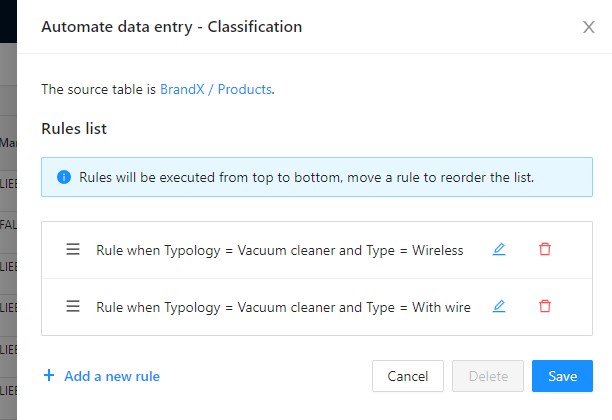
Rules are evaluated in order. Make sure the most specific rules come first.