
Link tables
Before you can create mapping rules, you need to connect the target table to one or more source tables and choose a pivot identifier.
WARNING
The rules engine must be enabled on your account before you can link tables. If you don't see the Link tables button, contact Product-Live support to enable the feature.
Link the target table to a source table
In the target table, click the settings icon and select Link tables.

Choose the pivot identifier
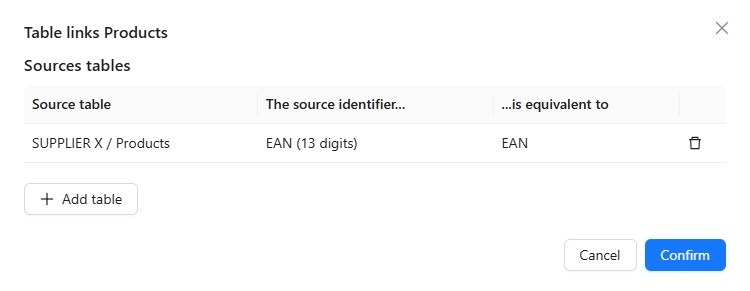
The pivot identifier defines how items from the source table are matched to items in the target table. Product-Live uses it to find the "same" item on both sides - for example, an EAN or a supplier reference.
WARNING
If no pivot is selected, the rules engine cannot match items and no rules will be applied.
Choose the source table and the pivot identifier:
TIP
Choose a pivot that is unique and stable on both sides - a value that identifies the same real-world product in both tables and never changes.
Next step
Once your tables are linked, you can start creating mapping rules. See Create a mapping rule.