
Frequently Asked Questions
Find quick answers to the most common questions about the Product-Live platform. Use the sections below to navigate to your topic.
Getting Started
How to access Product-Live ?
Answer
To access Product-Live, go to https://app.product-live.com.
Important
You must first create your account with your password before attempting a connection.
If your company has an account but you do not have personal access, please contact your account administrator to invite you.
In any case, if you encounter issues, please contact our support support team.
How to reset my password?
Answer
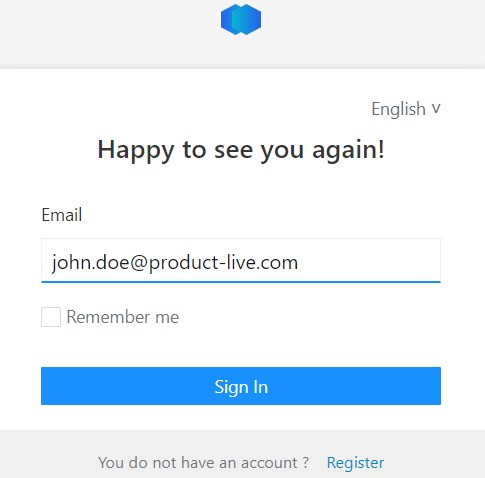
Go to the login page (https://app.product-live.com), enter your email address, and click on the "Sign in" button.
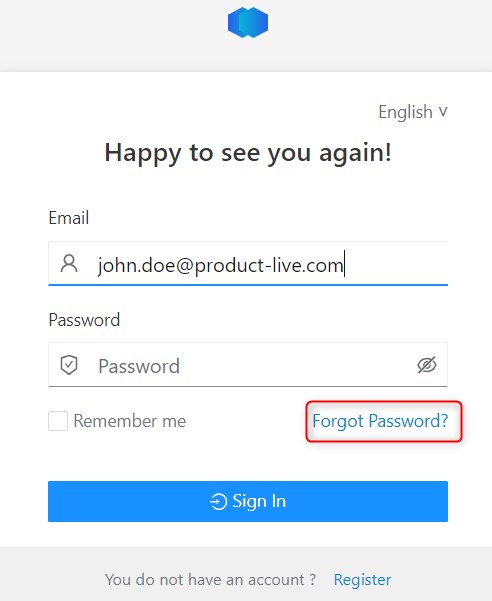
Click on the "Forgot password?" link.
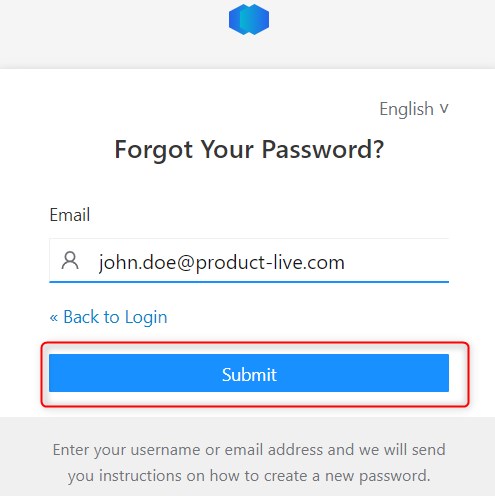
Submit the form. You will quickly receive an email with all the necessary information to update your password.
Tip
If you don't receive the email, check your spam folder. If you still can't receive this email, please contact us at support@product-live.com.
I cannot connect to the platform. What should I do?
Answer
If you cannot access the platform, try these steps in order:
- Check the login URL - go to https://app.product-live.com.
- Reset your password - if you see an authentication error, use the "Forgot password?" link.
- Check for SSO issues - if your company uses Single Sign-On, the issue may be related to your corporate identity provider. Contact your IT department.
- Double authentication - if you are prompted for a second authentication code and it does not work, ensure your authentication app is synchronized with the correct time.
- Clear your browser cache and cookies, then try again.
Tip
If none of these steps work, contact support at support@product-live.com with your email address and a screenshot of the error.
I did not receive the invitation email
Answer
If you have been invited to Product-Live but did not receive the email:
- Check your spam/junk folder - the email may have been filtered.
- Check the email address - ask your administrator to verify the email used for the invitation.
- Corporate email filters - some corporate firewalls may block emails from external senders. Ask your IT team to whitelist emails from
product-live.com. - Resend the invitation - the account administrator can resend the invitation from Settings > Users. See the User management guide for details.
Important
Invitation links expire after a certain period. If the link has expired, the administrator will need to resend a new invitation.
Users & Accounts
How to invite a new user?
Answer
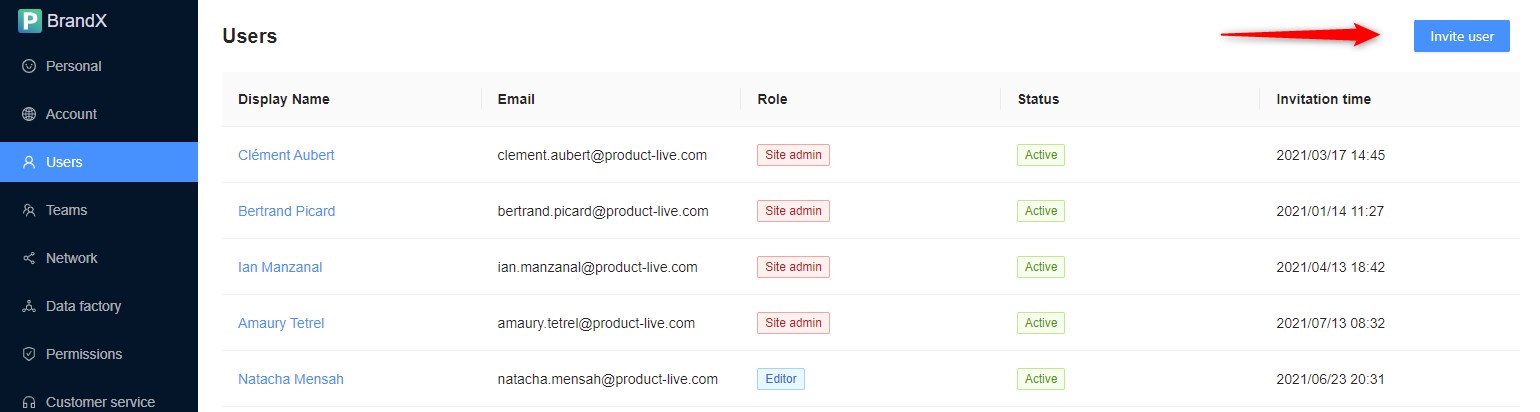
To invite a new user, go to https://settings.product-live.com and then the Users tab. For more details, see the User management guide. Here you can view all the users within the current account.
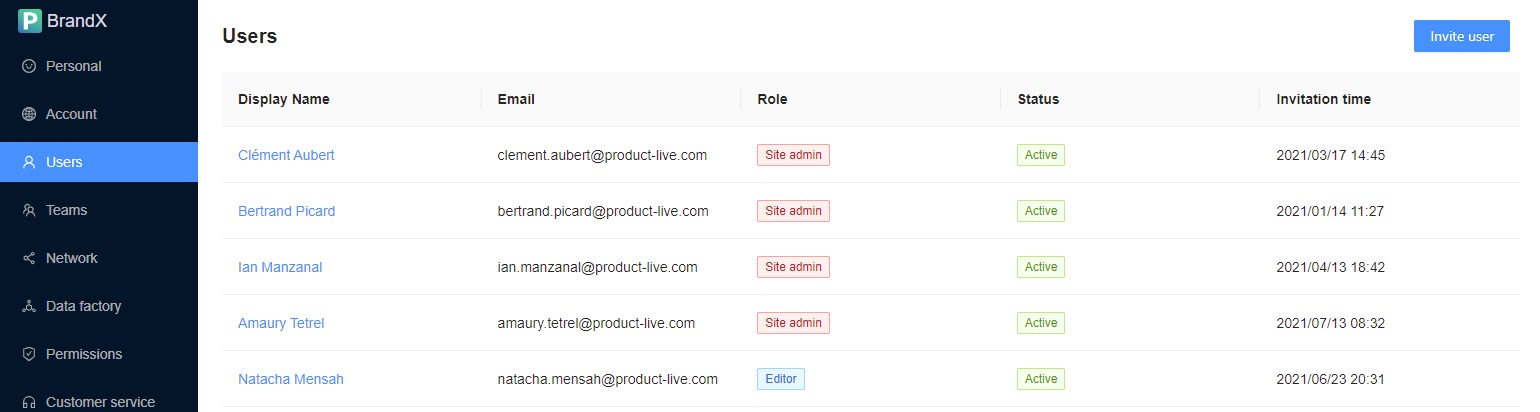
You can invite new users by clicking this button:
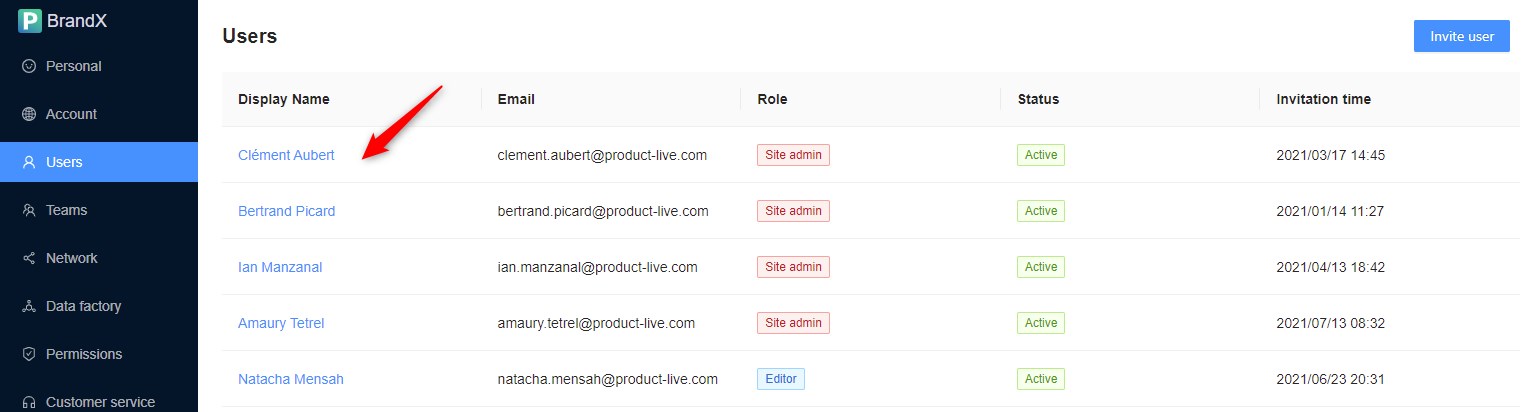
You can edit a user by clicking on his name:
Important
Only an administrator can invite a new user.
There are limits to the number of users depending on your account offer. Usually the limit is 1 Site admin and 2 Editors.
What is the difference between admin and editor roles?
Answer
Product-Live accounts have two main user roles:
| Site admin | Editor | |
|---|---|---|
| Edit product data | Yes | Yes |
| Launch jobs & actions | Yes | Yes |
| Invite or manage users | Yes | No |
| Delete items | Yes | No |
| Access account settings | Yes | No |
| Manage mappings & rules | Yes | Limited |
The number of available licenses depends on your account offer (usually 1 Site Admin and 2 Editors). To change a user's role or request additional licenses, contact your account administrator or support@product-live.com.
How to switch accounts ?
Answer
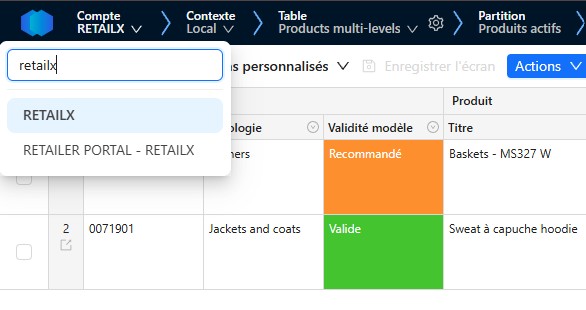
To switch accounts, click on the initials at the top right and select the desired account.
Important
You will only see accounts for which your email address has been activated.
Managing Items
How to create an item?
Answer
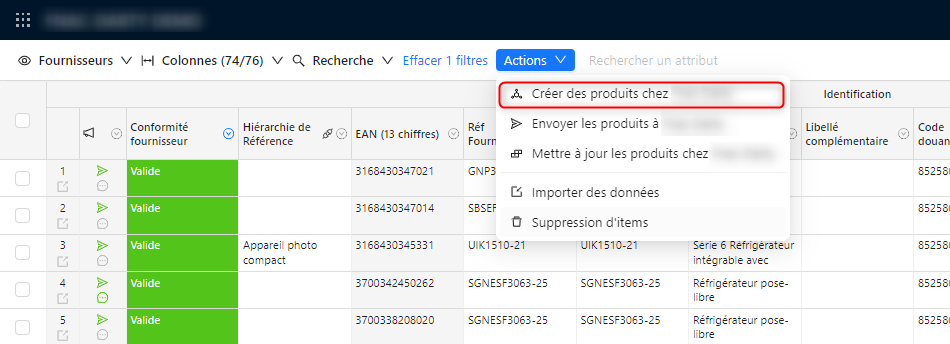
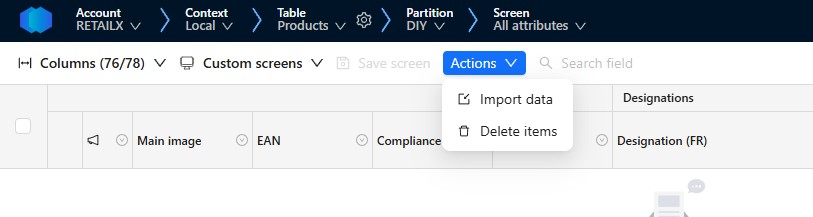
If you're on a share table, your partner may have shared an action allowing you to create items. To create an item, launch the action Create items on the (XXX) table.
Alternatively, you can create an item by using the "Import data" functionality to create items in bulk from an Excel file. See the Quick import guide for details.
How to delete an item?
Answer
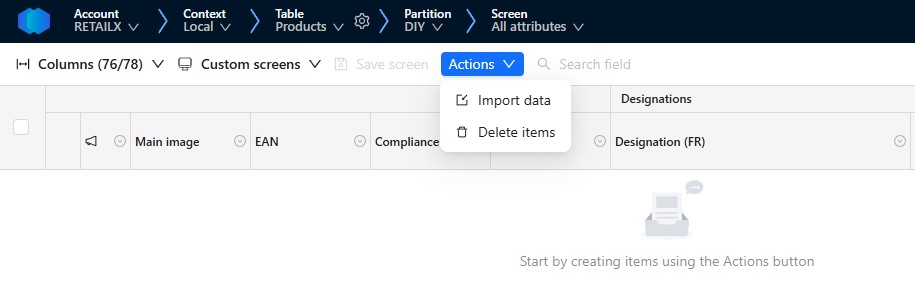
To delete an item, select one or several items and launch the action Delete items.
Important
Only an administrator can delete an item.
Removal is irreversible.
How to edit an item identifier, such as an EAN?
Answer
Generally, a unique identifier (such as an EAN) cannot be edited once an item has been created. However, this may depend on the configuration set by the partner (retailer) who manages the table. Some partners may allow EAN modifications - check with your administrator.
If identifier (such as an EAN) editing is not allowed, the workaround is:
- Recreate the item with the correct EAN.
- Copy/paste data from the incorrect EAN into the correct EAN.
- Delete the item with the incorrect EAN.
Important
Only an administrator can delete an item. Removal is irreversible.
How to increase the item limit?
Answer
To increase your items limit, you can subscribe to an offer. Please contact us at support@product-live.com or in case of a shared table, contact your partner (retailer) to request an increase of the item limit on the table.
Otherwise, you can delete existing items to create new ones.
I get an ITEM_QUOTA_ERROR or ITEM_CAP_ERROR
Answer
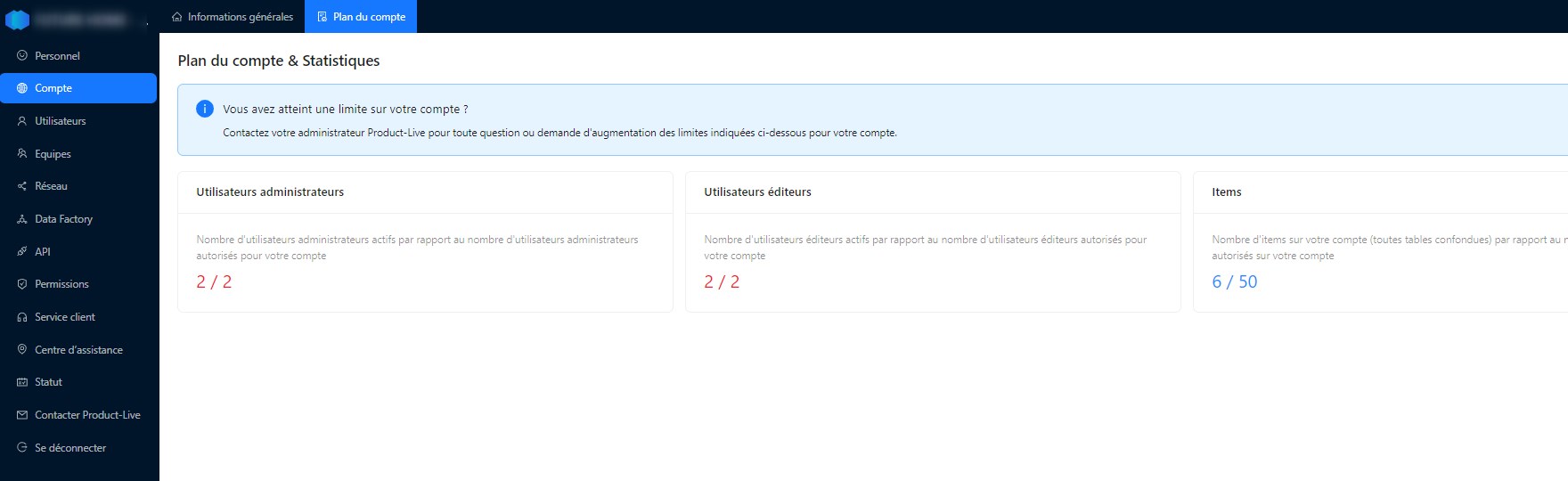
These errors appear when you have reached your account's item limit.
ITEM_QUOTA_ERROR- the maximum number of items allowed on your account has been reached. No new items can be created.ITEM_CAP_ERROR- the maximum number of items on a specific partition has been reached.
What to do:
- Check your current usage in Settings.
- Delete items you no longer need to free up space.
- To increase your limit, contact support@product-live.com or your distributor to upgrade your offer.
Why is my item invalid?
Answer
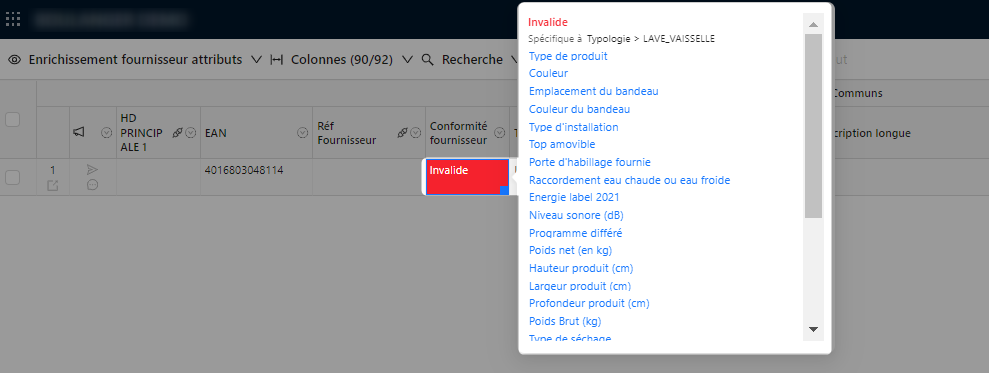
This means that some mandatory attributes are missing. Check the product data quality.
Step 1 - Click on the invalid cell of an item to see the details of the missing attributes.
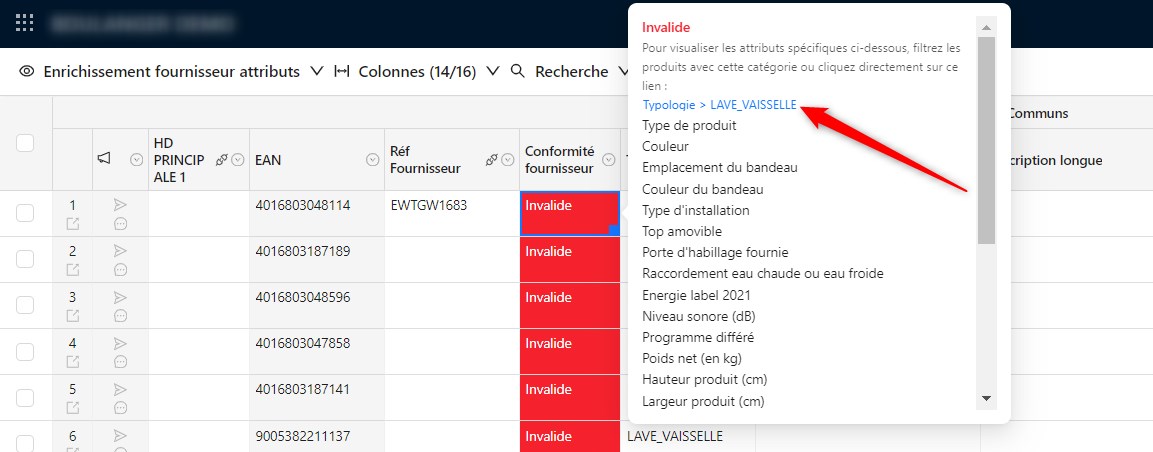
Step 2 - Click on the category name to apply the filter. Category-specific attributes will become accessible in the grid.
Step 3 - Click on the attribute name to be taken directly to the relevant column.
Grid & Navigation
Why don't all attributes appear in the grid?
Answer
By default, only attributes common to all categories are visible in the grid. To see all attributes, including category-specific attributes, you need to filter on the category first.
Learn how to apply this filter here: Classification quick filtering
Why is copy/paste not working correctly in the grid?
Answer
Copy/paste issues in the grid can occur due to:
- Browser compatibility - use a supported browser (Chrome or Edge recommended). Some browsers may block clipboard access.
- Column mismatch - when pasting multiple cells, ensure the selected columns match the copied data order. A column offset can cause data to be pasted in the wrong attribute.
- Attribute type - you cannot paste text into dropdown (single/multiple select) fields. These require values that match the predefined options.
- Special characters - some special characters may cause issues during paste operations.
Tip
If you experience persistent copy/paste issues, try refreshing the page with Ctrl + Shift + R before retrying.
Why are my filters not working as expected?
Answer
If filters are not returning the expected results:
- Category filter - remember that category-specific attributes are only visible and filterable when you filter on that category first.
- Conformity filter - conformity status may take a moment to update after data changes. Wait a few seconds and refresh.
- Date format - when filtering on date attributes, ensure the format matches the expected format (typically
YYYY-MM-DD). - Saved searches - if a saved search is not returning up-to-date results, try recreating it.
Learn more about filtering: Classification quick filtering
How to request a new value in a dropdown list?
Answer
Dropdown lists (single select / multiple select attributes) are managed by the table administrator (usually the retailer). As a supplier, you cannot add values yourself.
To request a new value:
- Identify the exact attribute name and the value you need.
- Contact the table administrator to request the addition (it may be on your partner's side if it's a shared table).
- If you don't know who to contact, send a request to support@product-live.com with the attribute name, the requested value, and the reason.
Important
Adding a value to a list requires validation from the table administrator, as it may impact data consistency across all suppliers.
Why is the platform loading slowly or showing a blank page?
Answer
If the platform is loading slowly or displays a blank page, try these steps in order:
- Clear your browser cache and refresh with Ctrl + Shift + R.
- Check your internet connection - the platform requires a stable connection.
- Try a different browser - Chrome or Edge recommended.
- Disable browser extensions - some ad blockers or security extensions may interfere.
If the issue persists across browsers and devices, it may be a platform incident. Check with your colleagues or contact support.
Import & Export
How to import mass data from an Excel file?
Answer
For mass data import, a quick import function is available.
Find out more here: Quick import guide
Why did my quick import fail?
Answer
Common causes for quick import failures:
| Cause | Solution |
|---|---|
| Wrong file format | The file must be in .xlsx format. CSV or .xls are not supported. |
| Column header mismatch | Column names must exactly match the attribute codes in your account. |
| Data validation error | Some values may not match the expected format (e.g., text in a numeric field). |
| File too large | Try splitting your file into smaller batches. |
Find out more: Quick import guide
My export is incomplete or empty
Answer
If your export file is missing data or is empty:
- Active filters - check if filters are limiting the exported items. Reset your filters and retry.
- Conformity status - some exports only include valid/conforming items. Ensure your items meet all mandatory attribute requirements.
- Timeout - large exports (especially ZIP archives with images) can time out. Try exporting a smaller selection.
- Category-specific attributes - if attributes are missing, make sure you have the right category filter applied before exporting.
Tip
For image/media exports, verify that the images are properly uploaded and visible on the platform before exporting.
Why does my table import show errors but the task appears successful?
Answer
This happens when the table import partially succeeds - some rows are imported correctly while others fail validation.
Check the job report in Data Factory to see the detailed error log for each failed row. Common causes include:
- Duplicate identifiers (e.g., duplicate EANs)
- Missing mandatory fields
- Values exceeding character limits
- Invalid references to non-existing taxonomy items
Jobs & Data Factory
Learn the fundamentals in the Data Factory introduction and how it works.
Why did my job fail with an error?
Answer
Job executions can fail for several reasons:
| Error type | Explanation |
|---|---|
| Timeout | The job took too long. Try reducing the batch size or splitting the operation. |
| Data error | Invalid input values (e.g., duplicate EANs, wrong formats). Check the job report. |
| Connection error | An external service (SFTP, API, CDN) was temporarily unavailable. Wait and retry. |
| Pipeline congestion | Other jobs are consuming resources. Wait for the queue to clear. |
To check error details, go to Data Factory, find the failed job, and click on it to see the execution report and the specific step that failed. Learn more about jobs and job executions.
Tip
If the error persists after retrying, contact support at support@product-live.com with the job name, execution date, and error message.
Why are my jobs stuck in pending or waiting status?
Answer
Job executions are executed sequentially on a pipeline. When a job is pending, it means other jobs are being processed first.
- Other jobs in the queue - your job will automatically start once the preceding jobs are complete. Click "Continue in background" to keep using the platform while waiting. Learn more about pipelines.
- A previous job is stuck - in rare cases, a long-running or frozen job may block the pipeline. Contact support if the queue does not progress for more than 30 minutes.
- Scheduled batch jobs - some automated jobs (e.g., nightly exports) may take priority and typically run outside business hours. See periodicity settings for scheduling details.
Important
This may also concern actions launched by other suppliers or accounts sharing the same pipeline.
Why is my job taking much longer than usual?
Answer
Job executions execution time can increase due to:
- Data volume growth - as your catalog grows, jobs naturally take longer to process.
- Large media files - image imports/exports are slower with high-resolution files or large ZIP archives.
- Peak usage hours - platform resources are shared. Jobs may run slower during business hours.
- Complex rules - jobs involving many completion rules, mappings, or validations take more time.
Tip
If a job that usually takes a few minutes is now taking hours, contact support with the job name and account details.
My scheduled/automatic job did not run
Answer
If a scheduled job did not trigger:
- Check the job's periodicity settings in Data Factory to confirm the schedule is correctly configured.
- Verify that the job has not been disabled or deleted by another user.
- A previous execution of the same job may still be running, preventing a new instance from starting.
- Platform maintenance or an incident may have temporarily interrupted scheduled executions.
Check the job's execution history in Data Factory for more details. See periodicity settings for scheduling configuration.
Why is the search not working in Data Factory?
Answer
If the search in Data Factory does not return the expected results:
- Search by job name - make sure you are typing the exact job name or a substring of it. The search is case-sensitive in some cases.
- Status filter - check if a status filter is active that may be hiding some jobs (e.g., only showing "success" jobs).
- Deleted jobs - by default, deleted jobs may still appear or be hidden depending on your filter settings. Toggle the filter to check.
- Pagination - if you have many jobs, the result may be on a different page. Check the page navigation.
Tip
If the search is consistently broken (no results at all), try clearing your browser cache or accessing Data Factory from a different browser.
My job fails with an SFTP/FTP connection error
Answer
If a job execution fails with an SFTP or FTP connection error:
- Credentials - verify that the SFTP/FTP credentials (host, port, username, password/key) configured in your job variables are still valid and have not expired.
- IP whitelisting - some SFTP servers require specific IP addresses to be whitelisted. Contact your IT team to ensure Product-Live's IP range is allowed.
- Server availability - the remote server may be temporarily unavailable. Wait a few minutes and retry.
- Firewall/Network changes - a recent network change on your side or the remote side may have blocked the connection.
Important
If you need Product-Live's IP range for whitelisting purposes, contact support at support@product-live.com.
Mapping & Rules
Why is my mapping not working?
Answer
If a mapping is not being applied correctly:
- Mapping configuration - verify that the source and target attributes are correctly mapped and the rule is active. See how to create a mapping rule.
- Attribute type mismatch - ensure the source and target attributes have compatible types (e.g., you cannot map a text field to a numeric field without a transformation). See advanced mappings for transformation options.
- Multiple select attributes - mappings on multiple select attributes require all values to exist in the target list of options.
- Batch execution - some mappings are applied during batch jobs. Run the Apply mappings action to trigger them manually.
Tip
If the mapping appears correct but is still not applied, contact support with the mapping details and affected product codes.
Why are my mapping rules not being applied?
Answer
Mapping rules may not apply if:
- Rule conditions - the conditions do not match the items you expect. Double-check the category, attribute values, and logical conditions. See rule conditions.
- Rule order - when multiple rules target the same attribute, execution order matters. Review the rule priority.
- Rule scope - ensure the rule applies to the correct partition and view (supplier vs. retailer).
- Cache delay - after modifying a rule, there may be a brief delay before it takes effect. Refresh the page and check again.
Learn more about the Rules Engine and explore mapping use cases.
Media & Images
Why are my images not displayed or not being exported?
Answer
If images are not visible on the platform or in exports:
- Supported formats - ensure your images are in a supported format (JPG, PNG, or PDF for documents). Check the maximum file size allowed.
- Upload status - after uploading, images may take a moment to be processed. Refresh the page after a few seconds.
- CDN synchronization - images uploaded via batch jobs are stored on a CDN. There can be a short delay before they become available.
- Export format - when exporting images in ZIP format, ensure the export job completed successfully and the ZIP file is not empty.
Tip
If an image appears uploaded but is not visible in the grid, try clearing your browser cache or viewing the item's detail page.
Data Publication
How can I check if an item has been published to my partner?
Answer
You can check the publication status of an item by looking at the color-coded arrows on each product line.
Find out more here: Send a product to your partner
Why was my item not collected by my partner even though I published it?
Answer
If you sent an item but your partner has not colelcted it:
- Check the sending status - look at the color-coded arrows on the item line to verify the send status.
- Item validity - only valid and conforming items can be sent. Check if your item has any missing mandatory attributes.
- Pipeline queue - the send action may be queued behind other jobs. Check the job status in Data Factory.
- Partner-side processing - the partner's system may take time to process incoming items. Allow some time before checking.
Tip
If the status shows "sent" but the partner cannot see the item, contact support with the item EAN and send date.
How to contact my partner directly from the platform?
Answer
You can contact your partner from the platform by using the comment function.
Automation
How to automate data filling?
Answer
To automate your data filling, you can use the Rules Engine to create mapping and automation rules. See automation use cases for examples.
For more advanced automation, explore Data Factory to build automated jobs and workflows.
For additional automation options, please contact us at support@product-live.com.
Support
How to contact our support team?
Answer
To contact support, send an email to: support@product-live.com.
When contacting support, please include:
- Your account name and email address
- A description of the issue
- Screenshots or error messages if applicable
- The job name and execution date (for Data Factory issues)