
Create a mapping rule
Once tables are linked, you can create rules that define how values are copied or transformed from the source table into the target table.
Who can create mapping rules?
Both administrators and editors can create, edit and delete mapping rules, once the rules engine is enabled on the account. If you do not see the mapping options, contact your administrator.
Open table fields mapping configuration
The table fields mapping configuration lists every field of the target table in one place, so you can set up a new mapping or review and update existing rules without opening each column one by one.
- Open the target table
- Click the settings icon next to the table name
- Click
Map fields

The screen lists all the fields of the table. Expand a field to:
- See its source table
- Turn its mapping on or off with the
Mappedtoggle - Create, edit or delete its rules, with the same conditions and actions as in the field mapping configuration
- Click
Add ruleto add another rule to the field
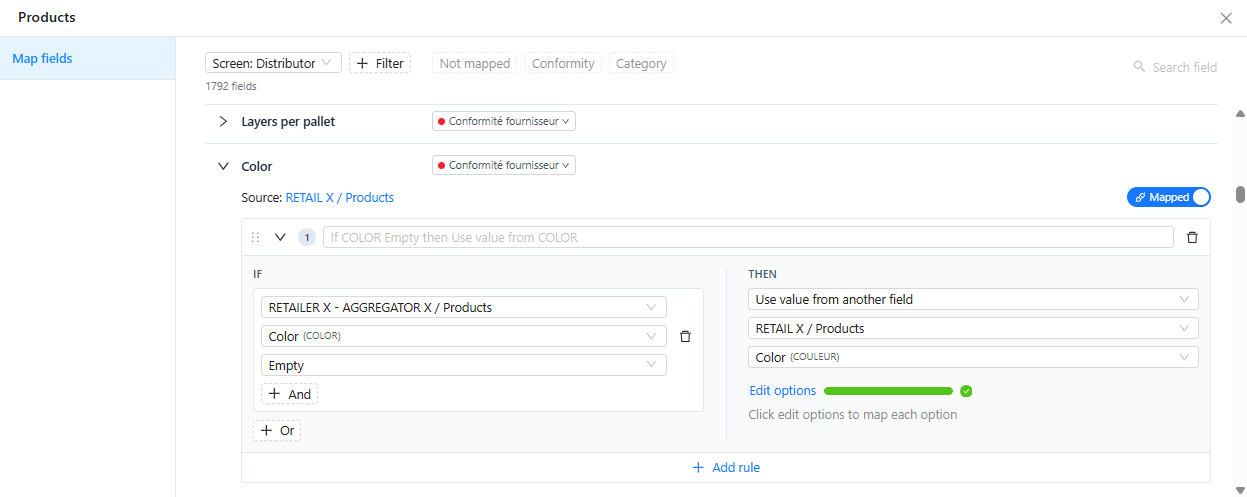
Filter the fields
On a table with many fields, use the filters above the list to find the fields you want to work on. Only the fields that match all the active filters are displayed.
| Filter | Selection | Displays |
|---|---|---|
| Screen | One screen | The fields of the table present on the selected screen. The current screen is selected by default. You can select any allowed screen of your own tables and any shared screen of the tables shared with you |
| Conditional formatting | One or more statuses | The fields with a rule that triggers the selected status. Statuses are grouped by conditional formatting field |
| Category | One category | The fields specific to the selected category. Categories are displayed in the hierarchy of their classification |
| Mapping status | Not mapped, Mapped or Ignored | The fields with the selected mapping status |
The counter shows the number of fields displayed out of the total number of fields of the screen.
Remove the filters to display the full list of fields again.
Open field mapping configuration
In the target table, go to the column you want to automate and click Confifure field or directly on the map icon. The map icon si visible if the field is already mapped or if its mapping is explicitly ignored.
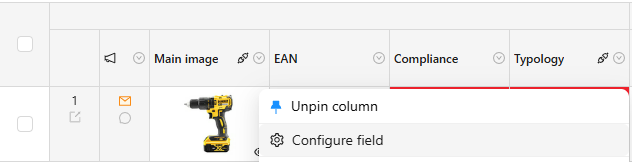
This opens the field mapping configuration screen where you configure the conditions and the action for that field.
Set conditions
Conditions define when the mapping rule is executed. Without conditions, the rule always executes.
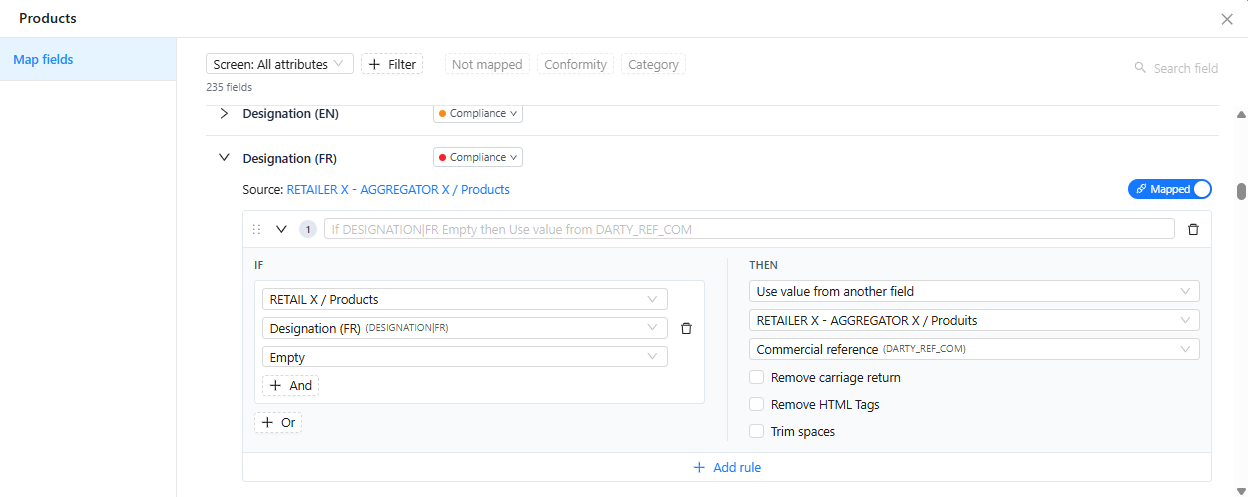
See Conditions for the full list of available operators.
Choose an action
The available actions depend on the data type of the column.
For a text column, for example, you can:
- Use a value from another field - copy a value from a source column into the target
- Use a default value - always apply the same static value
- Apply a template - use a Twig formula to concatenate or transform fields
- Ignore this column - no automatic update is applied to this column
See Actions for the full list of available actions per field type.
Save the rule
Click Save to apply the rule. The rule will be executed on the next mapping run, or immediately if you apply it manually to a selection of items.