
Data Factory Extension
The Product-Live VS Code extension is the main development tool for creating, validating, and packaging Data Factory jobs. It provides real-time diagnostics, autocompletion, XSLT transformation capabilities, and a visual workflow editor directly within VS Code.
Installation
Requirements
- Visual Studio Code installed.
- Java (64 bits) installed (required for XSLT transformations).
- Open VS Code and go to the Extensions panel (
Ctrl+Shift+X). - Search for Product-Live and install the extension, or install it directly from the Visual Studio Marketplace.
Commands
The extension provides the following commands, accessible via the Command Palette (Ctrl+Shift+P) or the context menu:
| Command | Shortcut | Description |
|---|---|---|
Create Job | Creates a new job from a template in the selected folder. Generates a job.json file along with the standard job structure (assets/, tests/, .jobignore, CHANGELOG.md, README.md). | |
Package Job | Ctrl+Alt+P (Cmd+Alt+P on Mac) | Packages the current job folder into a ZIP archive ready to be uploaded to Product-Live. Files listed in .jobignore are excluded from the archive. Works from the context menu or directly from the keyboard when a job.json file is open. |
Run XSLT/XSD | Ctrl+Enter (Cmd+Enter on Mac) | Runs the XSLT transformation or XSD validation configured in the status bar. |
Visualize Workflow | Opens an interactive visual representation of the job workflow. |

Customizing keyboard shortcuts
VS Code lets you change any keyboard shortcut, including those provided by the Product-Live extension.
- Open File > Preferences > Keyboard Shortcuts (or press
Ctrl+K Ctrl+S, on MacCmd+K Cmd+S). - In the search bar at the top, type the command title (e.g.
Package Job) or its identifier (e.g.extension.packageJob). - Hover the matching row and click the pencil icon on the left.
- Press the new key combination, then press
Enterto confirm.
To remove a shortcut, right-click the row and select Remove Keybinding.
To restore the default, right-click the row and select Reset Keybinding.
Features
Real-time Validation
The extension continuously validates your job.json files against the Data Factory schema. Errors, warnings, and suggestions are displayed directly in the VS Code Problems panel, enabling you to catch configuration issues before packaging.
The validation engine covers 65+ task types and checks:
- Required and optional task parameters
- Parameter types and allowed values
- Task reference name uniqueness
- File path references within assets
Autocompletion
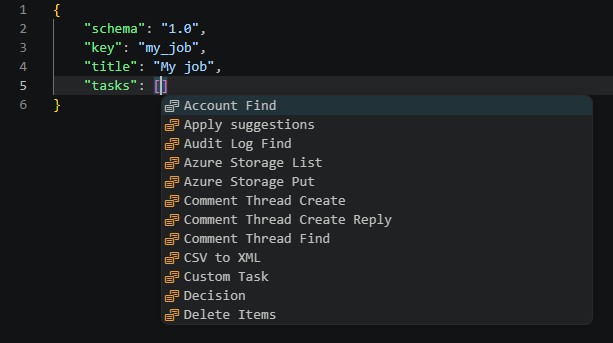
Press Ctrl+Space inside a job.json file to get context-aware autocompletion for:
- Task types and their parameters
- Job properties (
schema,key,title,icon, etc.) - Allowed enum values (icons, task types, protocols, etc.)
Inline Task Documentation
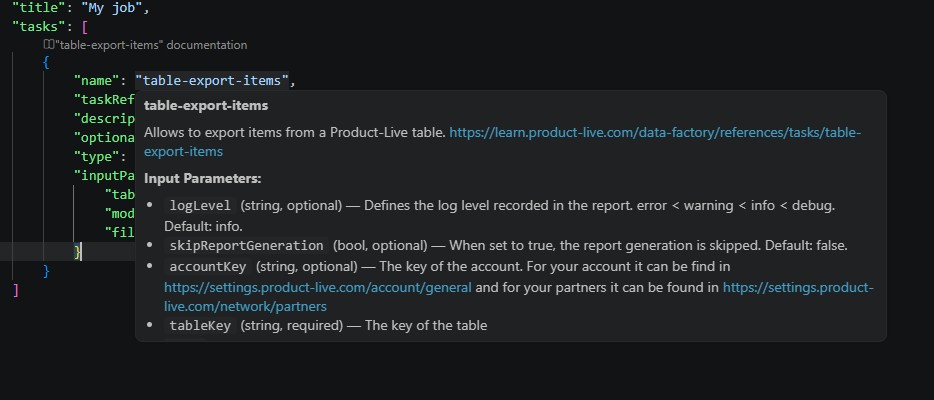
When hovering over a task name or parameter in your job.json, the extension displays inline documentation describing the task behavior, expected input parameters, and output parameters.
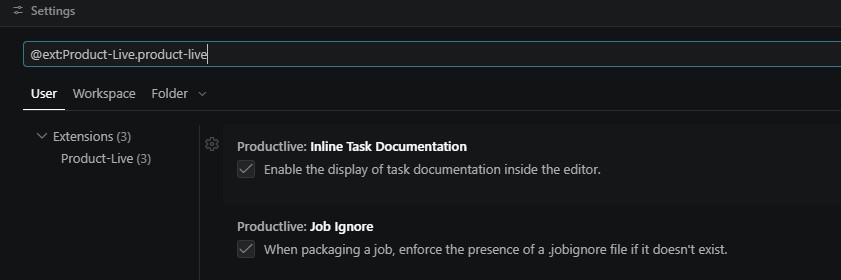
This feature can be toggled via the productlive.inlineTaskDocumentation setting.
Code Lenses
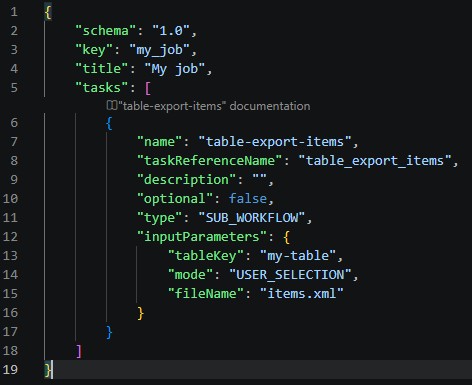
The extension adds clickable links above tasks in your job.json that open the corresponding documentation page on learn.product-live.com, enabling you to quickly access detailed task reference documentation.
Code Actions
Quick-fix actions are available for common issues detected by the validation engine. When the editor highlights an error, click on the light bulb icon or press Ctrl+. to see available fixes.
XSLT Transformation
The extension includes a built-in XSLT engine, allowing you to apply XSLT transformations to XML files directly within VS Code.
- Use the status bar controls to select input, XSLT, and output files.
- Press
Ctrl+Enter(Cmd+Enteron Mac) to run the transformation. - Choose the output format: XML, JSON, or XSLT.
- View the transformation result and a detailed performance report (duration, CPU/memory usage) in the Output panel.
- XSD validation is also supported for validating your XML files against Data Factory schemas.
Job Status Tree View
A dedicated tree view in the VS Code Explorer sidebar displays the status of your jobs. It provides a quick overview of your job structure and allows you to navigate between job files.
Workflow Visualization
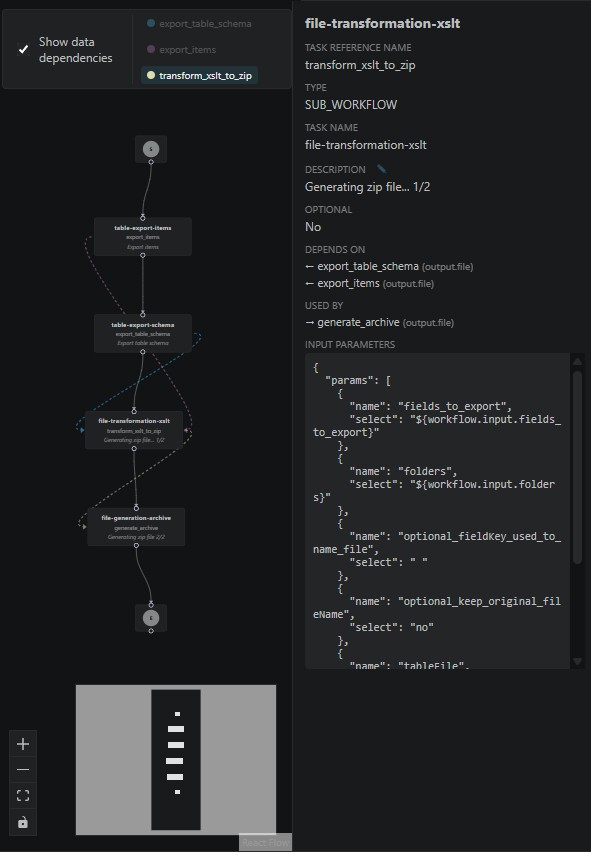
The Visualize Workflow command opens an interactive canvas that renders your job structure as a visual graph.
- Task nodes display the task type, description, and reference name.
- Control flow structures (loops, switches, forks) are visually represented with dedicated node styles.
- Click on a task to open a detail panel showing its input parameters and output parameters.
- Navigate to source by clicking on a task node to jump to its definition in the
job.jsonfile.
.jobignore Support
The extension supports .jobignore files that specify which files and folders should be excluded when packaging a job into a ZIP archive. This works similarly to .gitignore files.
When packaging a job without a .jobignore file, the extension will prompt you to create one (configurable via settings).
Default .jobignore content:
*.job.zip
.jobignore
assets/TESTS/*Example - excluding additional files:
*.job.zip
.jobignore
assets/TESTS/*
*.log
*.tmp
documentation/*Each line is a glob pattern. Matching files are excluded from the ZIP archive produced by the Package Job command. The node_modules directory is always excluded automatically.
TIP
The extension uses the .job.zip extension for packaged files (e.g., my_job.job.zip). This ensures that regular .zip files in your assets/ folder are not excluded by the .jobignore pattern.
Package Naming Strategy
You can configure how the packaged ZIP file is named via the productlive.packageNaming setting:
| Strategy | Example | Behavior |
|---|---|---|
key-timestamp (default) | my_job-2026_04_28T14_30_00.job.zip | Each package creates a new file with a unique timestamp |
key | my_job.job.zip | Overwrites the previous package |
key-date | my_job-2026-04-28.job.zip | One package per day, overwrites within the same day |
Settings
| Setting | Type | Default | Description |
|---|---|---|---|
productlive.jobIgnore | boolean | true | When packaging a job, enforce the presence of a .jobignore file if it doesn't exist. |
productlive.jobIgnoreForce | boolean | false | Auto-accept .jobignore creation when packaging a job if it doesn't exist. |
productlive.inlineTaskDocumentation | boolean | true | Enable the display of task documentation inside the editor. |
productlive.packageNaming | string | key-timestamp | Naming strategy for packaged job ZIP files. Options: key-timestamp, key, key-date. |
Next
- Get started with your first Data Factory job.
- Learn about XSLT, XPath, and XSD transformations.
- Explore the full task reference.