
Use Product-Live as a retailer
Create a product
To create products you have two possibilities, both in the Actions menu:
- Use an item creation job
- Use the Quick Import
Item creation job
From the Actions menu you can see a item creation jobs.
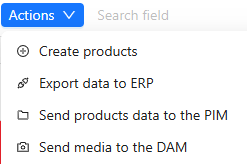
- Click on Create products
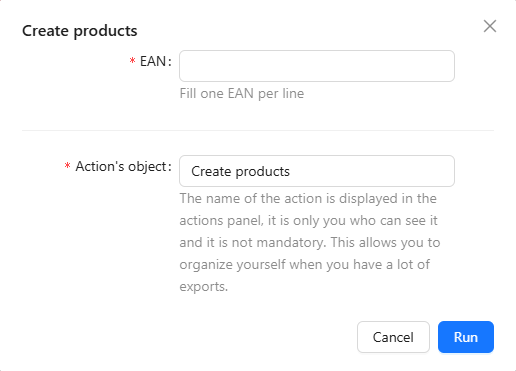
- Complete the EAN list that you wish to create. You can copy/paste it directly from an Excel file
- Click on Run
TIP
The EANs must be added without including any spaces.
The EANs cannot be subsequently modified, they must include 13 numbers as well as a control key, all valid
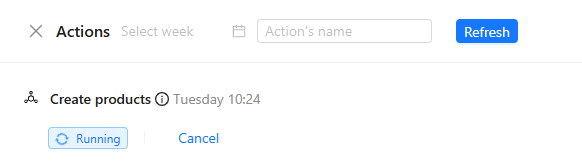
A window will open and indicate you the level of progression of the job.
TIP
If you wish to, you can let it run itself in the background, by selecting Continue in background. If so you may check the job progress by selecting the button in the top right corner.

Quick Import
If you have products to create from an Excel file, the Quick Import is the best choice. It enables you to easily import your products with their data in one action. See details in the dedicated page.
Collect a product from your supplier
Suggestion status
The left column allows you to track the suggestion status of your products:
| Status | Description |
|---|---|
 | No unread suggestion on the product |
 | New collected product from your partner |
 | Suggested update on the product by your partner |
By putting the mouse pointer on the envelop you can see the date and time of the latest collected suggestion on your product. By clicking on the envelop you can see all the collected suggestion on your product.
 | 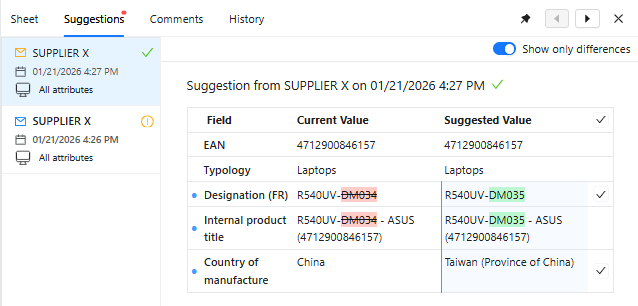 |
|---|
If you have collected composite fields, you can review each suggested line along with its content. Additionally, if a collect strategy is defined for a composite field, you will see the recommended line for your item's composite field, including its values. You can then accept the suggested values for this specific line.
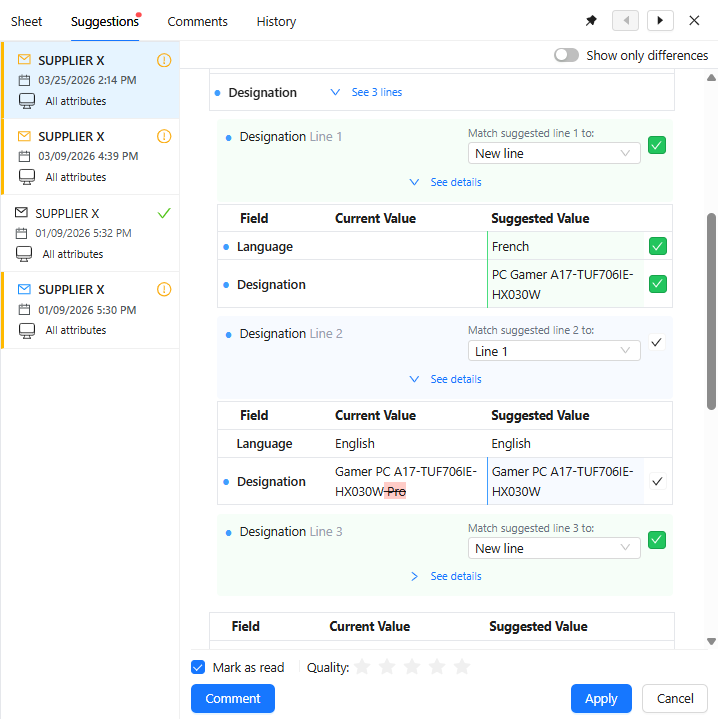
Composite field
The Composite field is in phase. You can contact the Product-Live team at contact@product-live.com if you want more details and get an early access.
Check new products
During the products referencing phase your partner publishes the products you requested from them, leading to the creation of products in your Product-Live table.
The products your partner published to you that did not exist in your table are automatically be created with all published data. To identify them, a blue icon on the product line is visible.
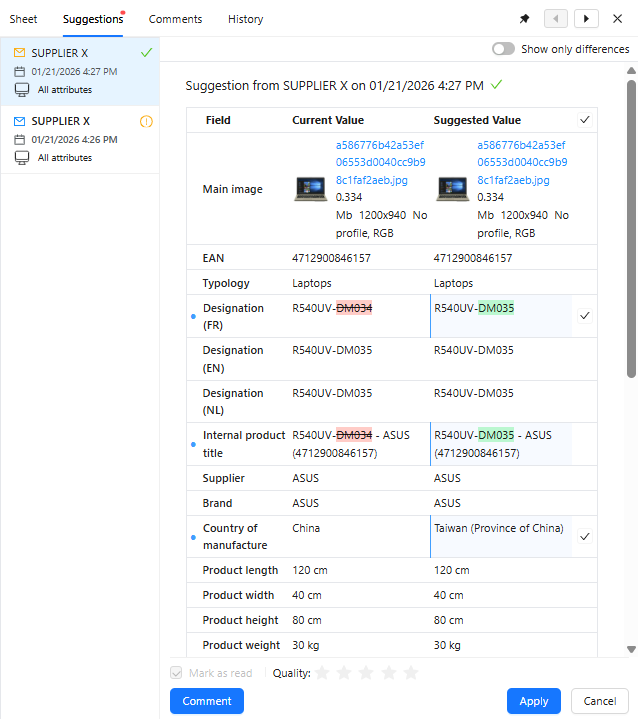
By clicking on the envelop the suggestion will be opened on the right side enabling you to inspect the collected data.
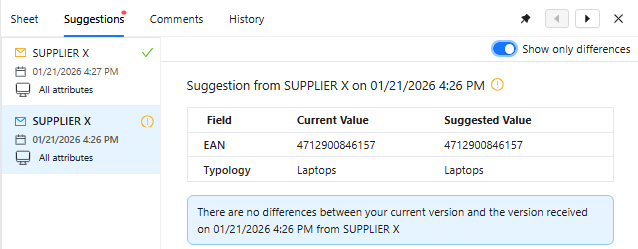
By default only identifiers, classifications are shown. You can display all collected data by unchecking the Show only differences button.
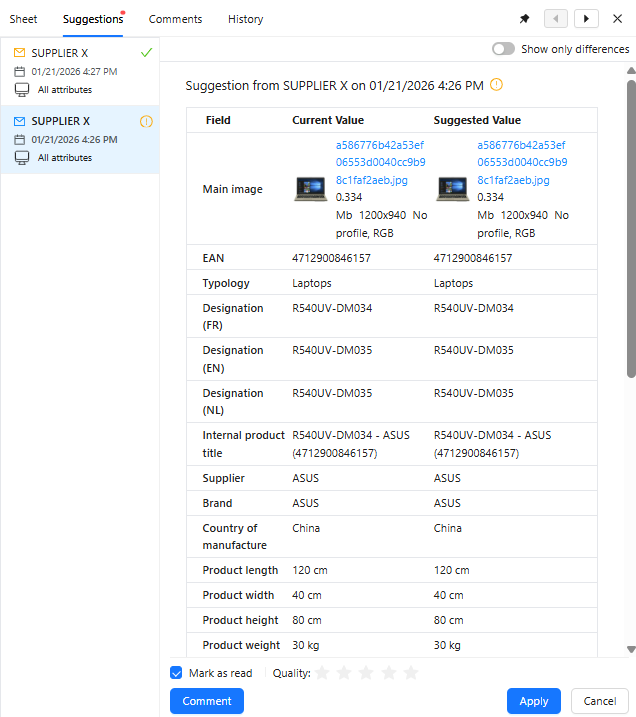
TIP
Once you have reviewed the suggestion, we strongly recommend that you mark it as read. This will cause the blue envelope on the grid to disappear, helping you clearly see which new unchecked products still remain.
Check suggested products
During the products enriching phase your partner publishes you additional products information, leading to the collect of suggestions on your products.
Any product which received suggestions have an orange icon.
By clicking on the envelop the suggestion will be opened on the right side enabling you to inspect the suggested data.
By default only identifiers, classifications and updates are shown. You can display all suggested data by unchecking the Show only differences button.
There you can check which suggested value you accept. Any suggested value where you have no value is checked by default. Then you can apply the suggestion and update your product.
If you edit your product values, they will automatically be updated in the comparison with the suggestion enabling you having an accurate view of the suggested changes.
TIP
Once you have reviewed the suggestion, we strongly recommend that you mark it as read. This will cause the orange envelope on the grid to disappear, helping you clearly see which unchecked suggested product updates still remain.