
Field edition
Feature in phase
The Table Edition is in phase. You can contact the Product-Live team at contact@product-live.com if you want more details and get an early access.
What is table edition?
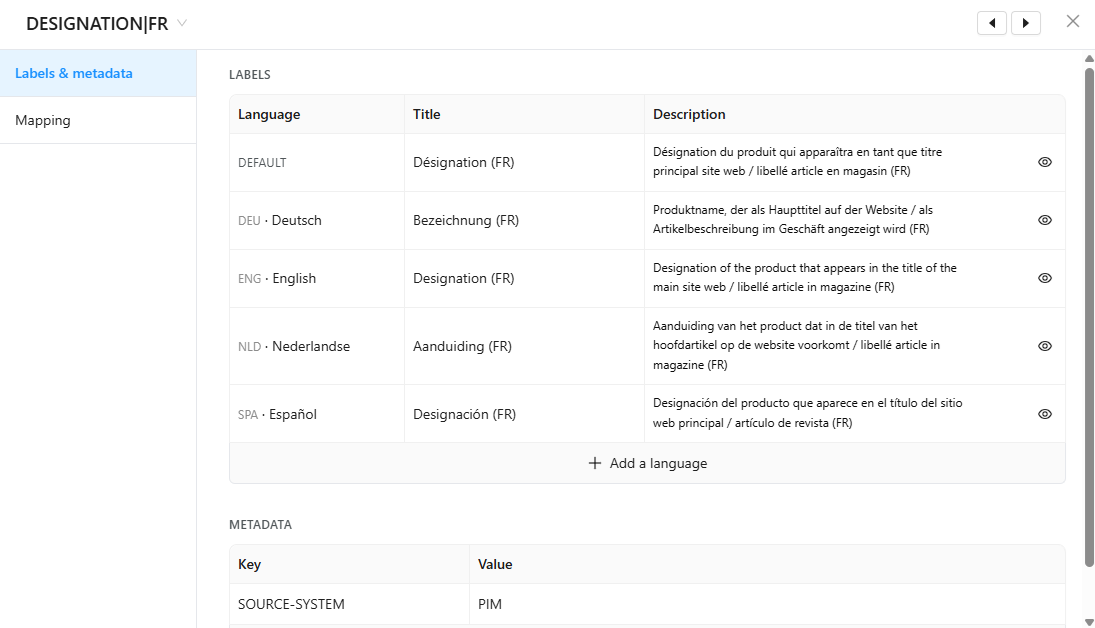
Table edition lets you change how fields are presented to the users of a table : its title, description, translations and metadata, directly from the column header.
Without table edition, changing a field requires a Data Factory job. Only technical teams have the skills to do it, so even a simple wording change means a request, a wait and a dependency on them. With table edition, administrators make these changes themselves in a few clicks.
It applies to every field type, including:
- the options of list fields
- the categories of classification fields
- the suffixes of number fields with suffixes
- composite fields and their sub-fields
Why and when to use it?
A field that is not explicit enough leads to wrong data, corrections and back-and-forth exchanges between you and your partners. Fixing it through Data Factory takes time and requires a technical team. In the meantime, your suppliers keep filling in the field the wrong way.
Table edition removes this dependency: you clarify a field as soon as you spot the problem, without technical help, and the change is visible immediately in the table. Your users and suppliers understand what is expected from them on each field and fill in their product data right the first time.
You might need it:
- To clarify what is expected on a field, for example the format, the unit or a concrete example
- To rename an option or a category that is not understandable without context
- To fix or complete a translation for your suppliers working in another language
- To make a unit explicit on a number field with suffixes
- To explain each part of a composite field
How to use it?
Who can edit fields?
Only administrators can edit fields. If you do not see the Edit field option, contact your administrator.
Edit a field
These steps apply to every field type. For list, classification, number with suffixes and composite fields, the editor includes additional options described in the sections below.
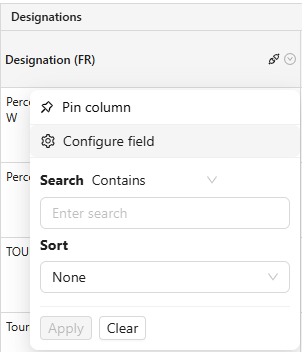
- Open a table and click on the menu of the column you want to edit
- Click
Configure field - Select the
Labels & metadatatab - The editor opens with the current values of the field. Edit the properties you need:
- Title
- Description
- Translations of the title and description, for each language of the table (see Multilingual)
- Metadata
Your changes are saved automatically and visible immediately in the table.
Edit categories
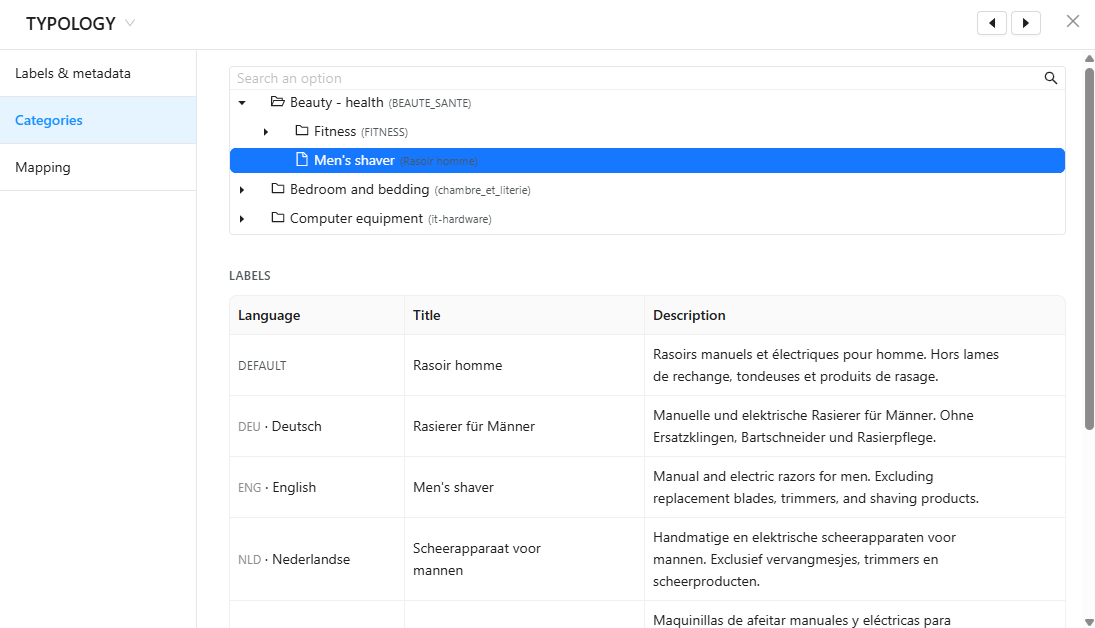
For CLASSIFICATION, the editor shows the tree of categories.
- Open a table and click on the menu of the column you want to edit
- Click
Configure field - Select the
Categoriestab - Select the category to edit
- Edit its title, description, translations and metadata
Edit options
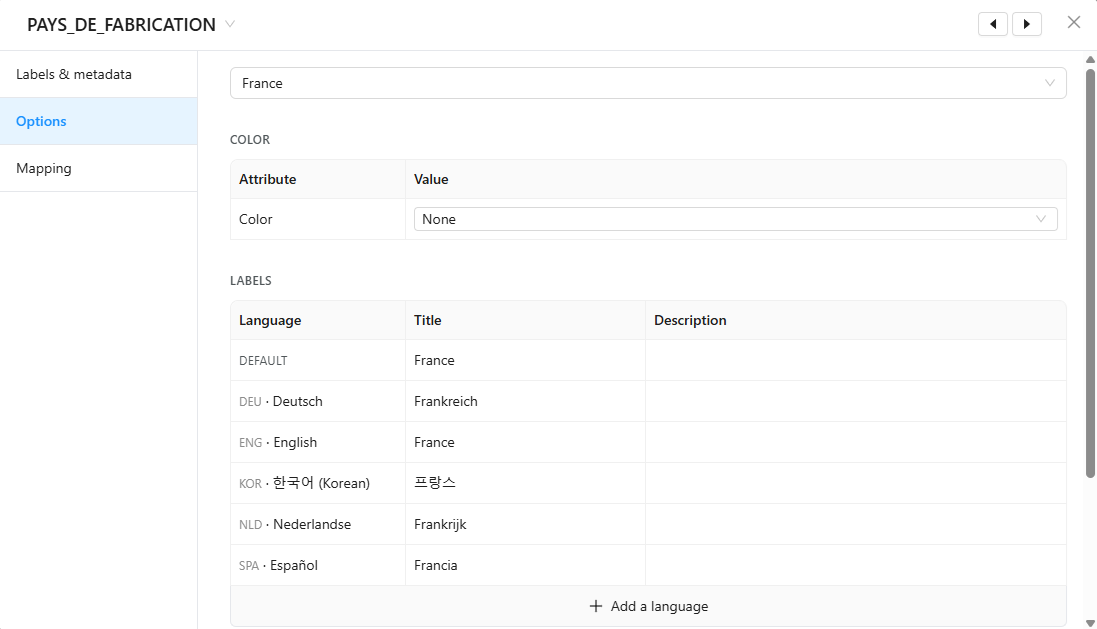
For SINGLE-SELECT, MULTIPLE-SELECT and their variants, the editor shows the list of options of the field.
- Open a table and click on the menu of the column you want to edit
- Click
Configure field - Select the
Optionstab - Select the option to edit
- Edit its title, description, color, translations and metadata
Your changes are saved automatically and visible immediately in the table.
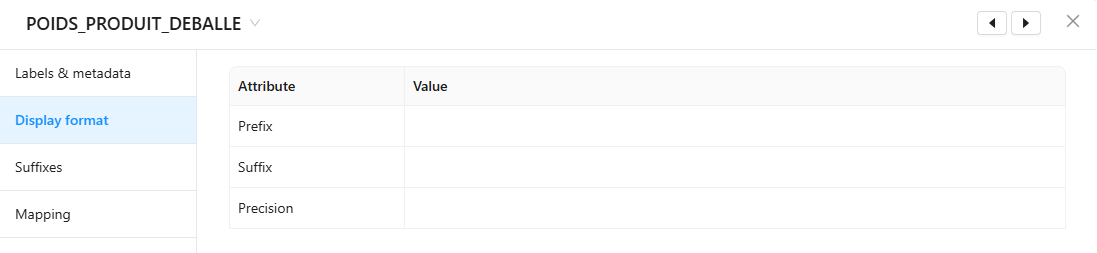
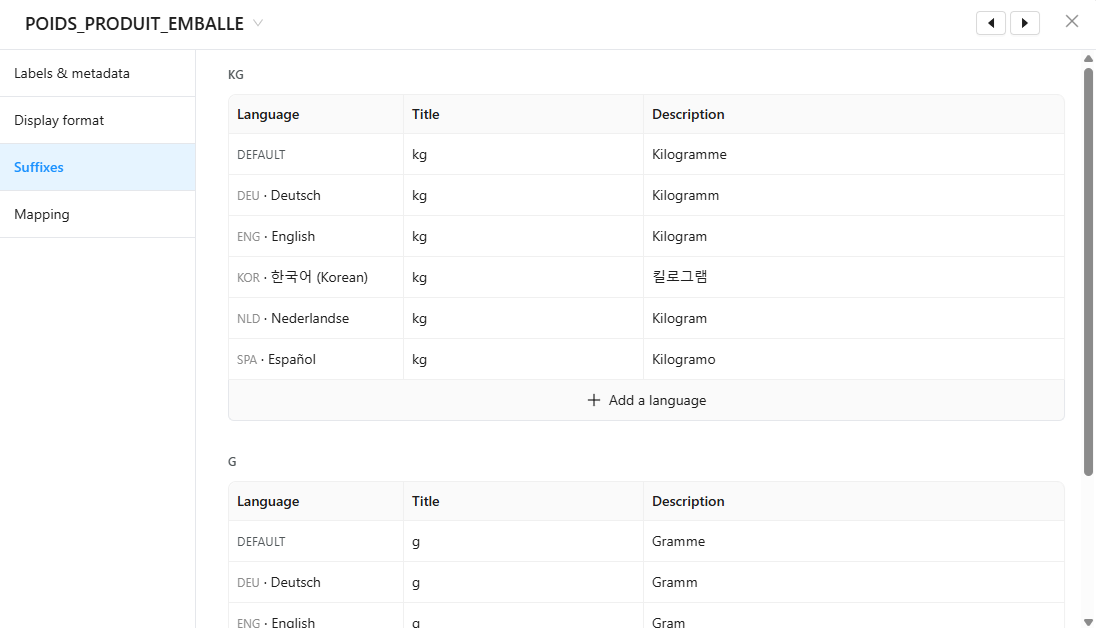
Edit suffixes
For NUMBER with harcoded suffix and with list of suffixes, the editor enables to update their labels.
- Open a table and click on the menu of the column you want to edit
- Click
Configure field - Select the
Display formattab to edit hardcoded suffix Select theSuffixestab to edit the list of suffixes - Select the prefix/suffix/precision to edit
- Edit its title, description
Your changes are saved automatically and visible immediately in the table.
| Prefix/Suffix/Precision editor | Suffixes editor |
|---|---|
 |  |
Edit composite fields
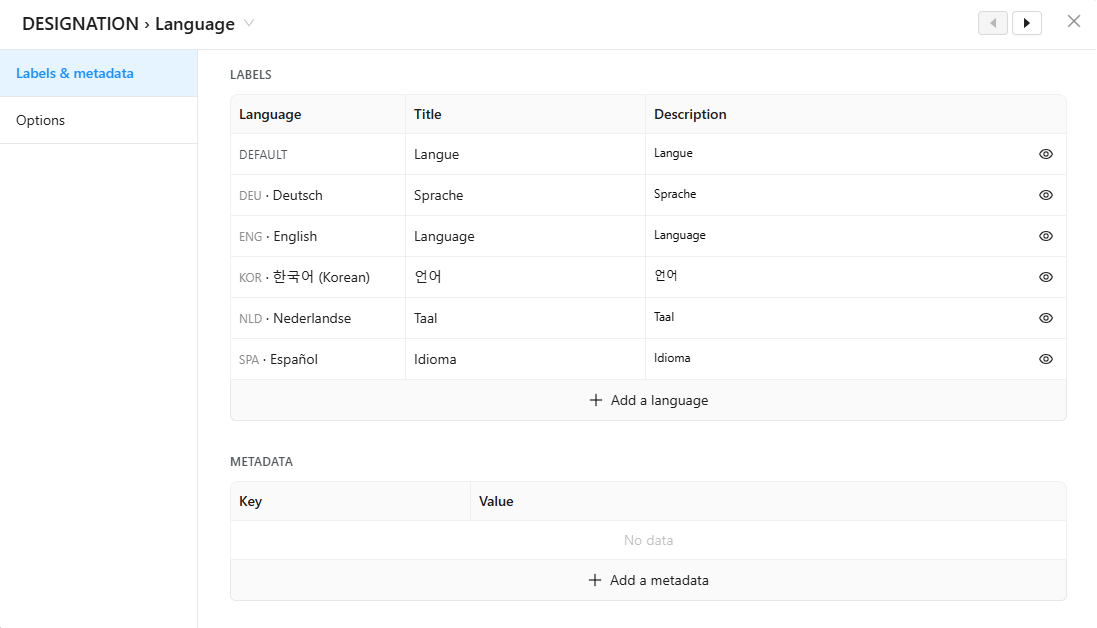
For COMPOSITE fields, the editor shows the properties of the composite field only. Each sub-field has its own editor and must be edited separately.
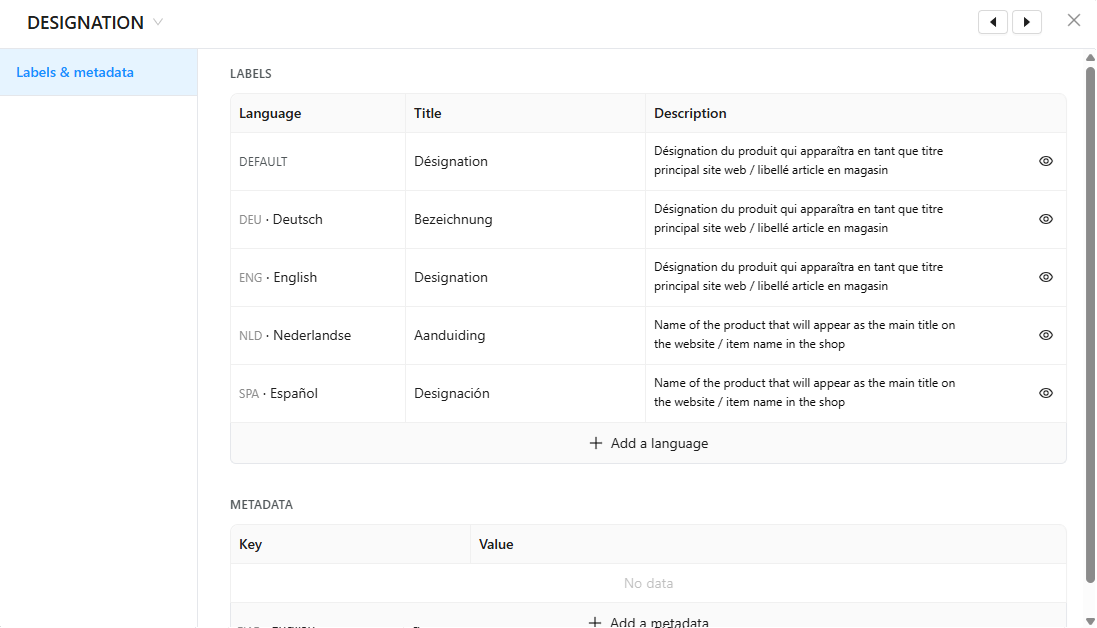
Edit the composite field
- Open a table and click on the menu of the column you want to edit
- Click
Configure field - Select the
Labels & metadatatab - Edit its title, description, translations and metadata
Edit a sub-field
- Open a table and open the parent composite field
- Open a table and click on the menu of the sub-field column you want to edit
- Click
Configure field - Select the
Labels & metadatatab - Edit its title, description, translations and metadata
Scope
WARNING
- Only administrators can edit fields
- You can edit the presentation of a field: title, description, translations, metadata and, for options, color.
- ⚠️ The key and the type of a field cannot be changed
- ⚠️ The parent of a category in the classification tree cannot be changed
- Changes made from the application are kept when the table structure is imported again with the Data Factory
table-import-schematask
FAQ
Will my changes be overwritten by the next table structure import?
No. Changes made from the application are kept even if the table structure is imported again with the Data Factory table-import-schema task. This way, a clarification made for your suppliers is not silently lost after an automatic update.
Do my suppliers see my changes?
Yes. Your changes are visible immediately to every user who has access to the table, including your partners on shared tables.
Why can I not see the "Edit field" option?
Field editing is reserved for administrators. If you are an administrator and still cannot see it, contact your customer success to check that the feature is enabled on your account.
Can I change the key of a field, an option or a category?
No. Keys identify the data in your integrations and exports, so they cannot be changed from the application. Use the Data Factory for structural changes. See Table life cycle.